Saturday, January 31, 2009

SharePoint Best Practices Conference 2009

Tomorrow I'm heading off to San Diego for the Best Practices Conference. I thought the last one was fantastic and I hope this will be just as good.

Last year's BPC had a great mix of people with all kinds of good tips and advice on SharePoint, ranging from really in-depth IT operations-style tricks to more end-user focused adoption and support techniques. There was a real buzz of enthusiasm for SharePoint that you don't often see at conferences.

This year Joel Oleson will be making the keynote and I'm looking forward to hearing his speech. As well, there are over 40 speakers (including many MVPs), 27 sponsors, and hundreds of attendees.

Last year I presented some ideas on how to centrally manage metadata in a farm. Once again I'll have a chance to speak on a similar topic. This time my presentation is called "Best Practices For Centrally Governing Your Portal and Taxonomy" - pretty straightforward title I know :) It'll expand on last year's work - I've got a demonstration of an actual governance site collection and ideas on how to manage things centrally including key SharePoint items like content types and lookup lists. I'll post the slides in various places after the event.

On a side note, I've been on the road a lot recently and my blog postings have been less frequent. With a bit of luck I'll be able to attend some sessions and blog on the speakers this week. Either way I hope to have some more "meaty" SharePoint posts in the near future. I don't want this blog to look like a travel diary!

Thanks for reading as always,

Nick

Saturday, January 17, 2009

Hello, New York!

Next week I'll be exhibiting echoTechnology's latest version of echo for SharePoint in New York City, at the SharePoint IMAGINE 2009 conference.

The conference is billed as "SharePoint in the Real World". Its focus is on how businesses use SharePoint to solve their specific real world needs, and how SharePoint impacts their bottom line.

It's organized by Impact Management and is taking place at the Microsoft NY Center at 1290 Avenue of the Americas on Wednesday Jan 21 from 9 to 4. Attendance is free so if you are in the area you should definitely sign up...you can do that here.

I'll be in NYC from Tuesday evening to Thursday afternoon, attending the conference and meeting with a variety of echoTechnology partners - so my itinerary is very tight. Still, it's a great opportunity to return to NYC, where I lived for a short while.

Good Times...

I moved home right after the awful 9/11 and the Dot Com bubble burst, and this is my first chance to go back. Although I was only living in New York for a year, it left an indelible impression on me - as it would on anyone.

My first professional programming job was in 2000/2001 as a Java programmer. I took New Jersey-based IT training company SetFocus' intense but great 3-month Java Master Track, and was then placed with an online education company in New York City.

We were developing a web-based learning system using JSP and servlets, in a cramped little office downtown on the corner of Church and Warren.

At first I lived in West Orange New Jersey with a small gang of roommates, and then we all moved to a small building in Astoria Queens. This was inhabited by a porn star, an aspiring model, an unkillable cockroach (we learned to live and let live), and a foul-mouthed talking parrot named Sammy (not necessarily in the same apartment).

Some of my favourite memories are: exploring the parks and trails on the edge of Battery Park City; bar crawling with my roommates and friends; celebrity spotting; conniving my way into an amazing hidden club called Light, marked only by bouncers and a lit white window and way too cool for me; eating lunches on the steps of Federal Hall in Wall Street and exploring Manhattan on foot during lunch hours; and wandering the streets of Brooklyn Heights.

...Followed By Taxes

Living there was also an exercise in paperwork. Due to my particular circumstances I paid 7 levels of taxes at various times that year:

  1. New Jersey state income tax
  2. New York state income tax
  3. Connecticut state income tax
  4. New York city sales tax (anytime I bought something)
  5. US Federal income tax
  6. Canadian Federal income tax (although I was out of country, as a Canadian even death can't cut short your obligation to pay taxes); and
  7. Ontario provincial income tax

To this day the state of Connecticut faithfully sends me an annual update on my pension plan, which currently sits at 13 cents a year. I'm sure just mailing me costs more than that! Luckily they report that they are investing great time and attention to increase the yield, so when I retire in 30 years, my pension will be at 14 cents and I can finally buy that tropical island.

Anyway, if you're in the area and want to say hi, drop me a line!

Saturday, November 08, 2008

DevConnections in Las Vegas Next Week

I'll be in Las Vegas this week for the DevConnections / SharePoint Connections conference from Monday to Thursday, hosted at the Mandalay Bay resort and casino.

echoTechnology will have a booth set up so if you're around drop by the booth and please say hello!

As always I'll try to attend as many of the sessions as I can and blog about anything that might be helpful. And try to not to blow all my money on blackjack...

Speaking of events, and on a somewhat unrelated note, LinkedIn has started releasing 3rd party applications on its platform. At the moment there are eight apps including

  1. Box.net - to store and share files
  2. BlogLink - by SixApart, showing your blog posting and sharing your contact's
  3. Slideshare Presentations and Google Presentations - to showcase and share powerpoint slides
  4. Reading List by Amazon - to share your reading list with your contacts.
  5. My Travel - a neat app to share the events you'll be attending

Similar to the My Travel application, LinkedIn also added Events, which is a searchable directory of industry events, and the reason I'm mentioning LinkedIn in this post. DevConnections is listed and I've signed up as attending.

I love LinkedIn, and I'm glad they're improving their offering with utilities that genuinely add value and make the network seem more useful and personal. You can get a much better sense of who your connections are when you see their blog posts and share trip itineraries.

Tuesday, October 28, 2008

SharePoint Governance Site Advice

While preparing for my SharePoint Best Practices Conference presentation on centralized taxonomy, I made a sample governance site to help with my demonstrations. Afterwards I received feedback from people asking for concrete examples on how to do this. So here goes:

Steps to Creating the Governance Site

I'm calling this the Governance Site because it's less confusing for the end users, but in SharePoint terms it's really a site collection. Here are some suggestions on how to set it up:

1. Use a dedicated site collection. By making a dedicated site collection you retain maximum flexibility. You can lock down the site collection security for sensitive governance documentation or make most content publicly available. You can deploy custom content types, site templates, and list templates, as well as manage features separately from the rest of your portal. You can manage Information Management policies and retention policies more easily. You also retain the ability to move the governance portal to other content databases, and can make complete backups of all your governance content.

2. Create a new managed path for the governance site in Central Administration. Under Managed Paths, create an explicit inclusion for the keyword "Governance".

2. Now create the governance site collection. With the Managed Path you just created, users will probably navigate to it using the URL http://[your portal address]/governance . The Site Template that you will probably use when creating this site collection is either the Blank Template,  the Team Template, the Document Center, or (probably best of all) the Collaborative Portal - because this will give you news and a site directory right out of the box.

3. Add a new global navigation link on your governance portal, pointing to the home portal. This allows your users to navigate back to the home portal from the governance site collection.

4. Add a new global navigation link on your home portal, pointing to the new governance site. This allows your users to navigate to the governance site right from the home portal.

Sydney - Governance Link

5. Ensure your Shared Service Provider search settings will crawl the governance site collection, although this should be happening by default.

6. Modify the governance site collection to suit your business. See below for tips on what to include / layout.

7. Keep your content types, custom site columns, workflows, Master Pages, and other SharePoint resources in this governance site. Centralizing them here effectively means they become your "Gold Standard" for any portal modifications. Your administrators should refer to them when making changes elsewhere. Your challenge is to ensure that work done elsewhere is consistent with the governance site.

Governance Site Layout

I'm including screenshots of the work I did. This is intended to help as a guideline.

The Home Page

Obviously this first page has to make it crystal clear to users what the governance site is for, and how to use it.

News and Announcements are important to indicate progress on the portal. A little introduction by way of a content editor web part would be useful to. Whatever you do, make sure this stuff is up-to-date - if you don't keep the governance site content fresh and useful, users will wonder what hope there is for the real portal.

I suggest putting a Roadmap on the front of it to show them where SharePoint has come from and where it is going in your organization. That way they understand this is a process and successes have already been achieved.

I like Roadmaps because people get very excited about the SharePoint possibilities. Having a Roadmap allows the governance team to take requests and good ideas from the business, organize them into little projects, and slot them into a proposed timeline. This encourages the business to see the SharePoint portal as an evolving, enabling process that they are involved in. It also acknowledges the reality of limited technical resources, time, and budget, and the need to make hard decisions about what will be done, and when. Best of all, it's quite transparent!
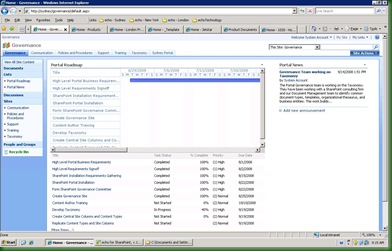
Governance Site Home Page

This road map is simply a Project Tasks List called "Portal roadmap", created on the root of the site collection. Then I added the task list as a web part in Gantt view.

Subsites

I would suggest including at least 5 subsites. These are:

1. Communication

2. Policies and Procedures

3. Support

4. Training

5. Taxonomy

These are the five main things your governance team will probably be working with. You can use any template you like, although in this case I used Team Sites. The Fantastic 40 might be useful for some of these sites - especially the Support or Training sites.

Communication

The Communication site is simply a central place to spread the word about the SharePoint portal. It could be very top-down, push communication via news items or updated content. More collaborative communication would probably involve wikis, blogs, or discussion threads. If you have an existing communication process or software you could link to it from here. Tying the SharePoint portal into your existing processes and content is an important way to make SharePoint seem less threatening, more empowering, and more inevitable :)

Not shown here is a feedback mechanism. This could be a discussion thread or embedded poll that asks users to comment on the governance site and suggest ways to improve it.

Policies and Procedures

The Policies and Procedures could be a Document Center. It is simply a central place for users to find all governance documents. You should store them here and then link to them from all the other sites, using the Link To A Document content type that is available from SharePoint out of the box. This will cut down on redundancy.

Support

The Support site should have a support matrix, showing users what levels of support are available for various sites, applications, and problems. This could range from self-help to IT support. There should be contact information for help desks and IT staff if available.

This is a good place to store videos and cheat sheets for users to help themselves. SharePoint add-ons such as the SharePoint Learning Kit could go well here. Effort place here will cut down dramatically on support costs!

Training

Training could also use the SharePoint Learning Kit, and could be a good place to identify what courses are available (internally and externally) and request training. I worked with a financial client who would not let users onto the SharePoint portal until they'd passed a small online course. Each manager had a KPI and was responsible for ensuring their staff took the course, passed it, and followed its teachings when using the portal. This helped lower support costs, the staff were very satisfied with the portal, and they used it more.

Taxonomy

The Taxonomy site is a place to document the metadata and site structure you will be using to organize the home portal. This site will be more technical but is an important resource for your administrators, developers, and content authors.

Document your content types and site columns, when and where they should be used, and explain how SharePoint uses them (advanced search, property searches, content query web parts).

If you have an organization Thesaurus, document or link to it here.

This is what it could look like:
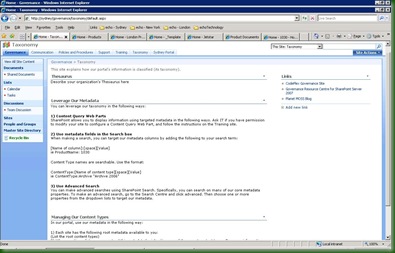
Governance Site Taxonomy 

Governance Site Functionality

There's a lot of native SharePoint functionality that you might wish to use on your governance site collection.

Auditing on the site collection: You may want to know who is looking at what.

Workflow: The Governance site is an excellent candidate for light-weight Out-of-Box or custom workflow. Workflow can help triage support and training requests, and handle publishing approval for governance policies and procedures.

Search Scopes and Best Bets: If ever there was a place to serve up highly targeted search results, the governance site is it!

Search use metrics. You have to turn this on in your Shared Service Provider(s). Pay very close attention to what people are searching for and finding (or not finding) on the governance site and use this to modify your governance approach.

Audience Targeting: Consider audience targeting content on the governance site to prevent information overload. Broadly speaking your governance site audiences might include:

1) Governance Team members

2) IT Operations, Farm Administrators and /or Site Collection Administrators

4) Site Owners (Probably business owners and power users)

5) Content Authors and Champions

6) Everyone Else

Key Performance Indicators - if you have the Enterprise license of MOSS then Key Performance Indicator functionality can be useful to give people a heads up of roughly how portal adoption is going. One thing you can do is create a custom list with some tracking metrics and then put a KPI on that list. You can update the list manually each week to show the latest usage trends.

Metrics are very important as they can indicate whether your governance effort is leading to success.

Information Management Policies - especially if you are applying records management practices to the governance content.

A Starting Point

I really hope that helps. If you do create a governance site, try to keep it up-to-date and make it the central place for people to visit. I would love to hear your comments on what you did, what works for you, what tips you have and what add-ons you found to help you manage your SharePoint portals.

Good luck in your governance efforts - it will definitely be time well spent!

P.S.: Sorry this post is a couple of weeks late, Julie :)

Saturday, October 04, 2008

Amazon EC2 To Support Windows OS

Great news from the folks at Amazon Web Services - their EC2 Cloud computing platform will shortly support Windows operating systems. This is a wonderful development as it will allow .NET applications to be hosted with IIS at the same level of scalability as the Linux folks now enjoy. I've signed up so when the first beta comes out, I have a fighting chance to test it.

Pricing will be higher for Windows OS than for Linux of course but with the advances in virtualization these days I doubt it will be a huge difference. Of course what you are paying for is the extra services of (presumably) professional backup, redundant servers, locked down security, onsite engineers, and all the bells and whistles a massive data centre run by one of the world's largest e-tailers will provide.

I'm a keen fan of Amazon's work - I think of all the major players they are the ones who understand the new economics of the internet the best - yes even better than Google I would argue. They are commoditizing application development in a granular and sustainable way.

Of course Google's revenue stream is huge. Of course they have made major successes by providing services such as online office apps, email, maps, analytics, adsense and adwords, but at the end of the day their revenue is entirely search-based and it isn't clear what level of support  any of these additional services are likely to receive over time. Right now it doesn't matter that all of these services are "free" and "Beta", because they are intended to fuel Google's search revenue. However, that assumes that Google will remain the #1 search destination. If it doesn't, all of these services will have to be dropped or given some kind of business model. In my opinion, anyone building on these services is therefore taking a bit of a chance.

At the bottom of any software ecosystem, the founder is essentially bullet-proof. That's because anybody using the platform faces the switching cost to another ecosystem, and also because the more services are offered, the more compelling staying on the platform becomes.

What Amazon is quietly doing is encouraging everyone to build on their platform, but charging them for this. By doing so, they are making a sort of business guarantee - they get a revenue stream for each of their services, and in turn they can support it with Service Level Agreements and dedicated teams. In other words, there is a vision and a road map because Amazon's web services each raise money.

Recent improvements to Amazon's DevPay - which provides an easy way for developers to charge for their software - and their work on the super-scalable SimpleDB are proof that they are in this for the long haul.

At the end of the day, developing on any cloud computing platform  isn't just a technical challenge. It raises a lot of thorny questions - how do you protect your data, what kind of legal issues accrue, what are the privacy issues, how do you handle service level agreements, how do you pass on your costs - just to name a few. Cloud computing is not a silver bullet and anybody committing to it needs to take a deep breath before they do, and research and plan ahead.

However, the commoditization of computing resources represents the same impact as the introduction of the telephone line or automobile factory - after awhile you forget they are there and just RELY on them. Seen this way, a future timeline of technological progress might include the names, "Thomas Edison", "Henry Ford", and..."Jeff Bezos".

What do you think?

Tuesday, September 23, 2008

SharePoint Best Practices Conference: Keynote Speech by Tom Rizzo

Tom Rizzo, Microsoft's Director of SharePoint, kicked off the SharePoint Best Practices conference with a funny and insightful keynote speech. He provided a view into SharePoint's current and future development, and reminded us of the various releases and support that are currently available for the platform.

Past, Present, and Future

Tom talked about SharePoint's humble origins in the Tahoe days, when it was teamed with Exchange. Now it's one of Microsoft's fastest growing server products ever. He joked that they are still trying to come up with a three-word description of it, given that as a platform and product it is  "floor wax and dessert topping at the same time".

He also touched on the future of SharePoint. Key directions for the next version will include investing in the "mobile experience", making the phone "a key client for SharePoint moving forward".

Another major investment is already occurring in the area of online hosting. Microsoft is trying to leverage its online SharePoint hosting experience, which I've blogged about before, and make it easier in the next version for clients to decide between on-premises and dedicated or multi-tenanted hosting in the cloud.

He described how SharePoint currently relates to the x2008 versions of Microsoft's products. SP1 with slipstream install allows SharePoint to work on Windows Server 2008. It provides security enhancements (like a reduced attack surface by switching off non-critical services), performance gains, and full support for virtualization.

I'll mention that last point again - starting with SharePoint 2007 SP1 Microsoft now provides full support to SharePoint servers using VMWare! This is very important - every solution definition doc I ever wrote had to explain to clients that if anything went wrong with their VMWare SharePoint instances, Microsoft would only provide "best effort" support. This is very good news. Here's the official announcement.

SQL Server 2008 adds transparent data encryption if you want to completely lock down your data - even if someone gains access to your SharePoint database server, they can't get at your data without the encryption key. It also provides performance benefits, including a nifty little feature called File Streams that allow SQL to manage and "serve' large files (BLOBs) from a file system - basically a nice compromise between the advantages of file system storage vs database BLOB storage.

Finally, Visual Studio 2008 makes it much easier to build (and debug) Workflow Foundation workflows for SharePoint.

Tom's Top 10 Best Practices

  1. Capacity Planning isn't a suggestion! (Also, move to 64 bit because SharePoint vNext will be all 64bit)
  2. Know Thy User
  3. Know Thy Data
  4. Know Thy Developer  - use asynchronous calls, watch out for web part connector blocking, inefficient code, do lots of stress testing
  5. To thine own self be true  [Unfortunately I don't remember what he meant by this]
  6. Scale up or out > actually do both! Plan your architecture to keep these options open
  7. SharePoint is an Enterprise app - don't let the WYSIWYG and wizards fool you - this takes investment of time, people, and money
  8. Support boundaries protect you and us [meaning Microsoft] - only use OOB or make customizations knowing they may not be supported going forward
  9. Weeding and pruning makes a beautiful deployment - constantly manage your farm and its content
  10. We all love code but.... Out of Box is good!

Questions and Answers

Q: What is Microsoft's commitment to cross-browser rendering?

A: Tom mentioned enhanced Firefox and Opera support in SharePoint 2007, as well as decreased use of ActiveX controls. This trend will continue . Mentioned browser on mobile phones is an increased priority. Partnership with Telerik makes Rich Text Editor more accessible / cross browser.

Q: What about Dynamics CR support with MOSS, without using the BDC?

A: Dynamics CRM was released after SharePoint so SharePoint couldn't integrate fully with it [Although the reverse must have been possible?]. Going forward better coupling between Dynamics CRM and SharePoint vNext will occur.

Q: What about Accessibility Standards?

A: Improvements will be made in the product going forward. Tom cited the work with HiSoft on the Accessibility Kit as an example. [Personal comment - I don't believe this is going to ever be fully resolved as long as maximum UI "functionality" is a priority- case in point the increased use of Silverlight and Ajax will likely make this a non-starter. I believe this can only be achieved with an MVC-style architecture that would service multiple clients, and this will likely represent a massive rearchitecture which I doubt will happen. For the current state of play see my previous post on accessibility in SharePoint.]

Q: What's going to happen with the Knowledge Network add-on? [Which automatically provided enhanced skill and people information in SharePoint based on email conversations]?

A: We liked the Knowledge Network so much we want to include it as a core feature in SharePoint vNext.

Wednesday, September 17, 2008

No More Metadata Migraines: Easily Manage Your Centralized Taxonomy

Well, I just finished my preso, which seemed to go very well (luckily!).

Basically my session covered best practices for taxonomy in SharePoint, including things you need to do (or not do) to make your lives easier when managing your portal's content.

It also covered ways you can leverage your metadata using Content Query Web Parts, property searches, and advanced searches.

Mindsharp will probably be making the presentation available on their SharePoint Best Practices website shortly. In the meantime I've uploaded the presentation in PDF format here: 

http://www.echotechnology.com/Events/Documents/No%20More%20Metadata%20Migraines%20-%20echoTechnology%20-%20SharePoint%20Best%20Practices%20Conference.pdf

As always I'd love to hear back from you about what your best practices are. My email's in the PDF, you can contact me via LinkedIn (http://www.linkedin.com/in/nicholaskellett) or you can comment on the blog.

The conference is over today, and we've really enjoyed it. We had lots of great conversations in seminar rooms, around the lunch table, and around the bar. It was neat to meet so many people who are enthusiastic about SharePoint, trying to do the right things with it, and willing to share their knowledge. I'll be blogging a bit more in the next few days, to try to transmit what I've learned.

Finally, congratulations to Mark Elgersma, Ben Curry, Bill English, and all the other Mindsharp folks who worked so hard to pull this off!

Friday, September 12, 2008

On The Road Again

I'm off to the SharePoint Best Practices Conference tomorrow, and can't wait. Specifically I am looking forward to:

  1. Speaking with a group of SharePoint adopters who I think will be very enthusiastic about the technology, and keen to share their knowledge and hard-won experiences
  2. Discussing best practices from lots of MVPs and presenters
  3. Visiting Washington (I've only been there once, about 16 years ago)
  4. Presenting on Wednesday - the topic is called "No More Metadata Migraines: Easily Manage Your Centralized Taxonomy" and I will discuss content migration, management, and metadata best practices, and then provide a short demonstration of echo for SharePoint

I don't know if other platforms have dedicated "Best Practices" conferences, but I'm sure glad there's one for SharePoint! I imagine the more open-ended a software platform is, the more important these kinds of freeform discussions become. Anybody know if Salesforce, IBM (for Websphere), Amazon, or Google do this kind of thing? Do they even need to?

Tuesday, September 02, 2008

Global Assembly Cache Trap Door

Sergio Otoya, the Technical Director of the Australian SharePoint consulting shop LivePoint, showed me a great little trick yesterday to open a "trap door" to explore the Global Assembly Cache (GAC). This is a special folder on the file system (at c:\windows\assembly)  where all the globally registered .NET DLLs reside.

Sergio pointed out that if you navigate to it using Windows File Explorer you can only see the registered DLL information.

GAC

However there is a little back door you can use to actually view the deployed DLLs. If you go to the Windows Start line and type c:\windows\assembly\gac  - it will open a new File Explorer window with the list of all the DLLs in a sort of folder view. So now copy and paste is enabled.

GAC - Behind The Scenes

Why is this useful? Well, in my particular case I was trying to copy a feature from one SharePoint portal server to another, and couldn't find the original WSP or Feature...So in order to manually recreate this I simply wanted to find the Feature (available from the SharePoint hive) and get my hands on the GAC-deployed DLL.

Not a very common use case, but a good trick to know.

Thursday, August 28, 2008

Next Stop, SharePoint Best Practices Conference!

Turns out I will be attending the SharePoint Best Practices Conference in Washington in a couple of weeks. echoTechnology is one of the Gold Sponsors, so I will be helping to man the booth.

Better yet, I get to do a 1-hour demo on how echo helps manage SharePoint using best practices. Details are still being worked out, but I'm hoping to demonstrate the Centralized Metadata best practices I've been working on.

So if you're at the conference and can spare an hour, please drop by to my presentation - Wednesday at  2:20 to 3:30. Even if you can't make it - you can stop by the booth any time and say hi!

Hope to see you there,

Nick

Friday, August 15, 2008

SharePoint World Record Dash!

In honour of the Beijing Olympic Games I thought I would create a new event, the SharePoint World Record Dash. The goal is to update a blank Team Site to include a whole new look, layout, and content, in the shortest possible time.

I'm using a preset echo for SharePoint batch to run the series of changes on one site, and Adobe Captivate to film the results - I awarded myself the broadcast rights :)

The changes are:

  1. Apply a new theme for the site (Obsidian)
  2. Remove the existing WSS Image Web Part
  3. Add an RSS Feed Viewer web part pointing to the BBC Sports news
  4. Add a custom link to the BBC website on the Links list
  5. Add a Content Editor web part with Wikipedia information

echo will use the SharePoint object model to make these changes, just as if I'd done them all by hand via the browser.

In this video I'm only updating one site but in my weekly webinars I show how easy it is to make identical changes in development, testing, production environments, on local or remote farms, and to multiple site collections and subsites.

Without further ado, here's the SharePoint World Record Dash video.

If you want to see the batches in more detail, feel free to sign up for one of our weekly webinars, every Thursday at 1 pm PST. You can sign up at http://www.echotechnology.com/registration/Events.aspx?PID=8&EVTID=1

Hope you like this!

Tuesday, August 05, 2008

SharePoint Metadata Best Practices

I'm in the middle of writing the first of several white papers for echoTechnology. echoTechnology is keen to provide prescriptive guidance when clients are making sweeping portal changes using its echo for SharePoint product, and this is part of that ongoing effort.

The goal of this particular white paper, on best practices for managing SharePoint metadata, is to help provide a series of specific DO's and DON'T's to help SharePoint Administrators when they are deploying and managing content types and site columns in their SharePoint farms.

I've come up with the following so far:

Goals

  • Support the creation of a Single Source of Truth in the portal – where content exists in only one place but can be displayed in multiple places
  • Create a consistent taxonomy for the portal
  • Centralize the management of this taxonomy
  • Ensure this taxonomy can be applied across the portal and across all the environments
  • Ensure this taxonomy can be updated as business requirements change
  • Users should be able to inherit the core taxonomy and enhance with their particular needs
  • Any changes make should be shared with the rest of the business, to reduce duplication

High Level SharePoint Requirements

  • Identification and creation of core content types for entire portal
  • Centralization of core content types in root of each site collection
  • Ability to push centralized content types across the whole portal 
  • Centralized content types must be updatable and any modifications can be pushed down to the subsites
  • Advanced Search should allow the metadata properties to be specifically targeted
  • Content Query web parts should be used to surface this content across the portal using the metadata
  • Developers should be able to programmatically use the custom content types without running into problems
  • Users must be educated and helped to use these content types and site columns
  • Users are still able to apply their own metadata when required by inheriting and adding custom columns

The specific Best Practices in SharePoint I recommend at the moment are:

Creating and Managing Content Types

  • Create the content type at the top level of a site collection. This ensures it is visible and can be used across the site collection.
  • By default, your content types will be placed in the "Custom Content Types" group. To help manage multiple content types over time, we recommend that you create your own group. Name it after your organization, or give it some other meaningful name.
  • Create a “root” content type for each type of Parent Content Type that you plan to use. A root content type is a custom content type that inherits directly from one of the Out-of-the-Box Content Types but that won’t be used directly in the portal. To avoid confusion, give the root content type the name of the parent content type, prefixed or suffixed by “Root”. All of your custom content types should inherit from a root content type. By creating these up front, you reserve the ability to later add one or more columns that all the children content types will automatically inherit. This powerful feature will reduce duplication and help ensure consistency across your content types.
  • Create a custom group name for your content types. Name the group after your organization or give it some other meaningful name. This is a useful way to filter content types as the portal grows.
  • When adding a new site column to one of your root content types, choosing to “Update list and site content types” will propagate your changes to any inheriting child content types. This is desirable behavior since any changes you make at the top level are by definition required across the business. If you do not wish to push down these changes to child content types, then you should perhaps rethink why you wish to add that column to the root level.
  • Don’t create too many core content types. Users will have to pick amongst these, and the more there are the more confusion will set in. Target the 80% of common use cases and let your users create their own child content types to satisfy any additional requirements.
  • Don’t include too many metadata columns in your content types. The more effort users have to expend while saving documents, the more dissatisfied they will be. Forrester Research quote: “It was so unusable. Eleven metadata fields! We just stopped using it altogether and started managing our documents on our workstations, another file share, anything to avoid having to use this system.”[1]
  • Only create site columns for metadata information that is not likely to be contained in the document itself, and that you intend to leverage. If you won’t be targeting a particular piece of metadata via the Advance Search Properties or via a Content Query Web Part, then don’t force users to fill it in. Later, if you find you need to target these properties, you can add them to the parent content type and push the change amongst all the children.
  • However many fields you use, make it as easy as possible for users to populate these. Set smart default choices, and make as many fields optional as you can.
  • In the case of Word 2007 documents, you can consider creating a custom Document Information Panel that makes it easy to enter metadata and provides filters and lookups behind the scenes. You can also consider embedding a custom workflow in your content type. It can be set to start when creating a new item, or when the item is changed. When triggered, it can fill in more metadata behind the scenes, perhaps using lookup variables such as the user name and department.
  • Use the Link to a Document content type whenever you have content stored elsewhere on the portal or in any other location accessible by a URL. This supports the goal of having a Single Source of Truth. Many organizations use this as part of a system of stub references, which link a front end SharePoint portal with their back-end Document Management systems.

Creating and Managing Site Columns

  • Create the site column at the top level of a site collection. This ensures it is visible and can be used across the site collection.
  • When adding Site Columns, first try to add from existing site columns. They cover a variety of needs from tracking the Author of an item to a person’s Job Title. It is worth checking whether a similar column already exists. Be aware that several especially common pieces of metadata such as Keywords and Subjects already exist and can be used.
  • Description already exists but cannot be found in the list of site columns. Other reserved site columns including Title and Description are kept in a site column group named “_Hidden”. Do NOT rename out of the box Site Columns!
  • When possible, favour the Choice site column type which displays a list of values as dropdown lists, radio buttons, or checkboxes. This list will reduce the chance of user error and make your metadata values more consistent.
  • Don’t Repeat Yourself – leverage existing metadata such as department and project names from lookups and business data catalogue fields. This ensures when things change, your administrators do not have to modify the values in many locations (which leads to errors and inconsistencies). Because Choice columns usually provide a pre-defined list of options, they are often a good candidate for lookups and business data catalogue fields. Always check to see if the Choice values can be linked to some other centralized source, such as Business Data or list items.
  • Lookups and Business Data Catalogue columns are also useful to help delegate list management responsibility. Any user with create or modify permissions on the list, or the equivalent permissions in the BDC application, will be able to adjust the values in the site column without requiring the help of a SharePoint Administrator.
  • Do not create Choice values that are too specific – you risk forcing your content authors to “misfile” their content. The file folder is a classic example of a system that causes this sort of grief. If an item could conceivable belong to multiple categories, use the Checkbox Choice column type.
  • Create a custom group name for your site columns. For consistency, give it the same name as with the Content Types (above). This is a useful way to filter site columns as the portal grows.
  • Take care when renaming Site Columns! SharePoint will store the original name as the Internal Column Name, but display the new column name. This internal column name is also known as the SharePoint Field Name. SharePoint will automatically escape the column name when creating the Site Column. David Hunter provides more information on common escape characters on his blog http://www.davehunter.co.uk/Blog/Lists/Posts/Post.aspx?List=f0e16a1a-6fa9-4130-bcab-baeb97ccc4ff&ID=95[2]. Michael Markel identifies a further limit to SharePoint internal naming: the name cannot be more than 32 characters long[3].
  • As a best practice, create a Site Column with a name that contains no special and is no longer than 32 characters. Once you’ve created it, you can rename the column’s Display Name using the special characters and make it any length you like.
  • An easy way to find the Internal Column Name is to view the Site Column in the Site Columns Gallery. Its URL contains a Column parameter which is the Internal Name.
  • NEVER rename the Title column, as this is a reserved name! Doing so will change the Title display name all over the portal, and attempting to change it back will result in this error: “The Column name that you entered is already in use or reserved”. If you wish to change the appearance of a Title column, you should create your own custom site column and hide the original Title column in all views.

Your Advice, Please!

Because these are best practices recommendations, I would love to have your help:

  1. Am I recommending anything that you feel is wrong?
  2. What am I missing?
  3. How do you centralize and manage your metadata in SharePoint?

Feel free to comment, and thanks in advance!


[1] “How To Drive Document Management Adoption”; Kyle McNabb; Forrester, 2006-09-07; p 4.

[2] “Tip - SharePoint 2007 Escaped Column Names”, David Hunter, “Thinking out aloud - Dave Hunter's SharePoint Blog” ; 2008-04-06; http://www.davehunter.co.uk/Blog/Lists/Posts/Post.aspx?List=f0e16a1a-6fa9-4130-bcab-baeb97ccc4ff&ID=95

[3] "Chopped Column Names in Sharepoint”; Michael Markel; Blog; 2007-09-20; http://www.michaelmarkel.com/2007/09/chopped-column-names-in-sharepoint.html

Friday, July 18, 2008

SharePoint Best Practices Resources

The SharePoint technology stack covers such deep waters that "best practices" are a constant buzzword these days. After the release of SharePoint 2007 everybody was scrambling to learn the platform, but now that it is better understood, people are ready to figure out not just HOW to do something in SharePoint, but increasingly WHAT and WHY.

Given this, I thought I would mention a few new best practices resources.

To begin with, Mindsharp's doing a lot of work in this area.

SharePoint Best Practices Conference

There's a SharePoint Best Practices conference in Washington this September, sponsored by Microsoft Press and Mindsharp. It runs from Monday September 15 to Wednesday September 17, and includes breakout and cabana sessions.

Although the sessions are not nailed down yet, some of them include things like:

They'll be led by SharePoint MVPs and authors and should provide some real "lessons from the field" for SharePoint deployments.

Cost to attend is $995 USD. More information can be found on their website at http://www.sharepointbestpractices.com/

SharePoint Best Practices Book

Related to this is another Mindsharp effort - the Microsoft Office SharePoint Server 2007 Best Practices book. From the blurb on the back:

Achieve your IT objectives with proven, best-practice guidance on using SharePoint solutions.

Get field-tested best practices and proven techniques for designing, deploying, operating, and optimizing Microsoft Office SharePoint Server 2007 and Windows SharePoint Services 3.0. [...] this guide is written by leading SharePoint MVPs and Microsoft SharePoint team members who’ve worked extensively with real-world deployments and customers. You’ll find out how to deploy the software, design your environment, manage content, analyze and view data, perform disaster recovery, monitor performance, and more. You'll learn how to create SharePoint sites that help your organization collaborate, take advantage of business insights, and improve productivity—with practical insights from the experts.

Bill English and Ben Curry wrote the bulk of the book, but as Ben points out they had

tons of help from rock stars like Kathy Hughes (MVP), Paul Schaeflein, Daniel Webster (SharePoint Guru), Mark Ferraz (IA and Security), Paul Stork, Jim Curry, and Mark Schneider (PMP).

When I left Dimension Data to move back to Canada, my team was kind enough to chip in and get me an Amazon gift certificate - and I've already used it to get this book. I should have it next week (I'm away from my house currently) and look forward to reading it and learning a lot in the process.

International SharePoint Professionals Association

There is a brand new organization called the International SharePoint Professionals Association that aims to be the umbrella organization for all SharePoint workers.

The International SharePoint Professionals Association, also known as ‘ISPA’, is an independent, not-for-profit, community-driven organization dedicated to support SharePoint professionals and groups all around the world. The primary mission of ISPA is to promote the global adoption of SharePoint Technologies by providing support and guidance to the SharePoint community as a whole – by establishing connections between SharePoint professionals, groups, resources, education and information. ISPA is led and supported by volunteers across the world, and will focus on bringing the entire SharePoint community closer together.

Although it isn't Best Practices per se, I'm mentioning this here because the organization aims to provide "support and guidance" for the SharePoint community. If it does this well, I'm tipping this could become a powerful incubator for creating and spreading best practice knowledge.

Bob Fox has the announcement on his blog. He's also got a list of regional evangelists on that post.

Thursday, July 17, 2008

Follow up to "No authority could be contacted for authentication"

Anthony Moore, an IT Manager at LivePoint, provided me with some more understanding of the root causes of yesterday's demo machine errors.

Each machine in a domain has a password, (exactly like your username / password) and the passwords are reset periodically as well automatically though Active Directory...

If you restore an image of a machine to a prior state, the password in active directory becomes out of sync with [what] is stored in the machine, and the...issue can occur.

I imagine this isn't news to any Active Directory gurus out there but it clears things up for me. Going forward I will be including the AD Domain Controller in the server snapshots and rolling it back alongside the SharePoint virtual machines.

Hope this helps someone else. Thanks for the insight, Anthony!

Wednesday, July 16, 2008

"No authority could be contacted for authentication."

I have been giving weekly webinars using a demo environment that mimics 3 SharePoint farms (2 x MOSS 2007, 1 x SPS 2003). While prepping for tomorrow's demo I ran into some very strange SharePoint behaviour.

For no apparent reason, the default site collections no longer worked - they failed to load and couldn't see each other via a web browser. However, on both 2007 farms, I could still see and use the remote internet site collections just fine (using anonymous authentication on port 8000).

In the Event Viewer, various errors started complaining about DCOM saying things like

Reason: The trust relationship between this workstation and the primary domain failed. (Exception from HRESULT: 0x800706FD)

And when I viewed the other sites in the browser, I would get "Service Unavailable" errors and, eventually:

No authority could be contacted for authentication.

These errors, plus the fact that I could still use anonymous authentication, obviously pointed to something beyond SharePoint being the culprit. When these kind of authentication errors abound you don't have to look far beyond Active Directory to find the guilty puppy.

I eventually ran across this very helpful post by Noman Juzar Lakdawala on the ASP.NET forums:  http://forums.asp.net/t/986545.aspx

I followed his instructions and removed my servers one at a time from the domain, deleted the entry in the Domain Controller, and then readded them. Everything works now!

Not sure why AD got corrupted in the first place, so I will continue testing, but so far so good.  Thanks Noman!

Thursday, July 10, 2008

Eating My Own Dog Food: Photo Metadata Advice

David Marsh had a great comment on my previous blog entry. I'm reposting it in its entirety because I think it is a great tip for anyone trying to manage their photos on their file system.

I did some considerable research to find the best approach for tagging Photos and videos. One concern I had was tagging photos and storing those tags in a propriety format that I would not be able to see my tags on a photo in the future and secondly ensuring that whatever program I used was using current industry standards for tagging. So with that in mind I found out that the XMP format from Adobe is becoming the defacto standard for storing metadata about photos and Microsoft have also adopted this format. The problem with most programs out there is they maintain keywords and tags in a separate database to the actual files. (Picasa does this). That is bad because if I copy all my photos to another computer or have them backed up somewhere else, without the database I have no tags. The XMP format embeds the keywords and tags in the files themselves so they are fully portable and the keywords are never lost and are program independent. So I looked at some of the Adobe photo cataloguing applications but finally chose Microsoft Expression Media 2 because of its great support for tagging photos and then embedding them in the files and also the simple extensible scripting mechanism they have for allowing you to rename and tag your photos in bulk based on the date the photo was taken, or the file name or any other piece of metadata you can think off. Very powerful, and I know my photos are storing all my keywords and tags in XMP format within the photos themselves and it is a standard that will guarantee I can read the tags on computers in 10 years or so. I think the best option at the moment.

Here are some more insights into the topic:

Jon Udell at Strategies for Internet Citizens http://blog.jonudell.net/2007/02/14/truth-files-microformats-and-xmp/

and Geoff Coupe's Blog:

http://gcoupe.spaces.live.com/blog/cns!6AA39937A982345B!4417.entry

The general consensus is that keeping the metadata with the file is the preferred approach, which makes perfect sense and is in keeping with the rest of my SharePoint-based Information Management plan.

David recommends Microsoft Expression Media 2. It also has an archive feature - the ability to backup to any mounted drive. This would work well with my JungleDisk mounted drive.

The software is $200 but I'm committed to getting organized so I'm willing to pay (a fair bit) for that if it saves me time down the road. More information on Microsoft Expression Media 2 is on the official website here:

http://www.microsoft.com/expression/features/Default.aspx?key=media

There is a trial version available here: http://www.microsoft.com/downloads/details.aspx?FamilyId=CD359E7D-FD27-4901-BAFF-6D564CFBD700&displaylang=en

For some reason it doesn't mention how long the trial lasts for. I'll download it today and see.

Has anyone else used Expression Media yet, and if so what do you think of it? If not, what other software would you use to do the job?

Wednesday, July 09, 2008

Eating My Own Dog Food: File Cleanup

I'm in the process of cleaning up my files, as I mentioned last week. It's going a little better than I expected.

To filter duplicate files I'm using a free tool, Easy Duplicate Finder which is available at http://www.easyduplicatefinder.com/download.html.

It does a good job of matching possible duplicates using file size, file type, and file name checking. It doesn't apply any logic to removing them, which is a good thing - I'm forced to check each possible dupe as I go and delete (or not!).

The tricky bit is figuring out which folder structure I should be using in the Hub folder...going forward I will be hosting most of this information in the cloud so I can apply labels and metadata at that point, and surface these files in all sorts of funky ways, but right now I still need a place for my files to live.

I'm committed to the whole Single Source of Truth practice and so I'm forcing myself to use Windows Desktop Search, Vista folder bookmarks, and a central desktop folder root.

It's been a real question of discipline - I often find myself reverting to bad practices and trying to copy the same file in multiple places if I can't quite decide where it should go. Over the last couple of days I've started getting a little better at placing any particular file in a single place and adding shortcuts and bookmarks to it.

Cleaning Up Music Files

  • I did a desktop search for *.mp in the root of the old c:\music folder
  • I copied all the files which were the results of the search into a new, single folder called "cleanup"
  • Then I did a duplicate file finder scan on that folder so it could clean it all up

Duplicate File Search Results 

  • I deleted the duplicate files...and went from about 3,920 files and 12 gigs in the music folder to about 2,152 files and 8.9 gigs of music.

Then I foolishly decided to let iTunes manage the folder.

For some reason no matter what I do iTunes duplicates the files 2 to 4 times. As near as I can tell, it is doing this because it thinks the song could belong to multiple albums for that artist....Whatever the case, I am left with iTunes havoc and I am still puzzling out how to remove duplication in this folder without deleting original songs.

Thanks iTunes! Maybe it's not worth the bother.

Cleaning Up Photos and Videos

  • I did a duplicate file clean on the photos and videos folder
  • This is somewhat harder than managing music - as most cameras will tag a file with the same broad tag and then you copy 100 pictures labeled [Tag] 001, [Tag] 002, etc...
  • It required lots of manual passes, and I made sure not to delete things I wasn't sure about
  • I did some targeted searches using Windows Desktop search tool - looking for keywords and trying to merge things into broader folders
  • In the end, I've gone from 2100 files (including 1102 duplicates) and 36 gigs of content to 998 files and 28.7 gigs of space.

Metadata is much more important for photos than for music files, because I can use them in many more ways (image editing, personal scrapbooks, social networking sites, websites).

Because an image can be used in many different places, it isn't easy to choose a single folder for a photo to live in. I've started experimenting with bulk insert into Picassa or similar so I can tag 'em. Also pondering adding del.icio.us to the Information Management plan since I am in the whole Cloud frame of mind.

How do you manage photos on your desktop, especially with metadata? Are there photo management tools you couldn't live without?

Monday, July 07, 2008

SiSense's Amazon S3 Analytics Tool: Update

Shortly after I posted about SiSense's new Prism Business Intelligence Viewer with Amazon S3 analytics add-on, their Product Manager Adi Azaria contacted me. I'd mentioned a bug that occurred when I was trying to view my files. He asked to see my Prism log files, which I sent, and provided me with the newest version of the product.

This version provides an enhanced UI including more help links, a set of "Common tasks", and the ability to quickly create new data connections. Most satisfying, it fixed my bug!

Looks like my bucket did not have logging turned on. The new version checks for this and prompts the user when this happens.

SiSense Prism Log

Thanks Adi for the quick follow-ups and the great support!

Amazon Simple Storage Service Analytics Add-On

ReadWriteWeb has a post on an Amazon Simple Storage Service S3 analytics add-on called Prism by the folks at SiSense.

It's in private beta right now but there is an invite code to the readers of the ReadWriteWeb blog. I've signed up to see how it can help me manage my Amazon S3 buckets.

Prism Viewer is a desktop installation that provides a Business Intelligence interface to view the S3 usage stats. The Amazon Analytics Dashboard is an additional file (Prism file: .psm) that lives inside the Prism Viewer and reports on your S3 buckets.

SiSense Amazon S3 Connect

Once you've entered your Amazon S3 connection information, you can start to create reports on its activity.

Unfortunately I can't synchronize my bucket's logs because an error occurs. It is a private beta but I'm disappointed I can't yet see my own statistics. For the moment here's a screenshot of their sample bucket to indicate what the tool will look like:

SiSense Amazon S3 File Display

I'll try again later and see how it works. Since I plan to store more and more information on S3 I definitely need this kind of reporting.

Amazon is starting to build a great ecosystem on top of its utility cloud computing platform, and software such as Prism, JungleDisk, TagCow, and DreamTeam Suite is the proof.