Showing posts with label templates. Show all posts

Saturday, December 31, 2011

Project Server 2010: Bug When Creating PWA Project Sites after CU patches are Installed

We applied the latest Cumulative Updates to our SharePoint installation after doing some testing, and immediately ran into an error trying to create Project Server 2010 project sites.

Project Site Provisioning Settings (/pwa/_layouts/pwa/Admin/WorkspaceProvisioningSettings.aspx) had the default web app set appropriately and was set to auto-provision project sites (and this had been working for a year).

However when viewing the Project Sites from the Project Sites admin (/pwa/_layouts/pwa/Admin/ManageWSS.aspx) it showed there wasn't a Project Site.

When we tried to create the Project Site manually it said the site had already been created. The errror in the event log was as follows:

PSError: WSSCreateSiteFailure (16400) project server

After some testing I realized the error was being caused by some custom site templates we were using. They had been corrupted by the Cumulative Updates we had installed.

The fix is simple: I recreated the templates from the basic Microsoft Project Site template, resaved them into the PWA site collection’s Solutions Gallery, and can now auto-provision. I was also able to manually recreate the project sites for the projects that were missing them.

Hope that helps!

Tuesday, October 28, 2008

SharePoint Governance Site Advice

While preparing for my SharePoint Best Practices Conference presentation on centralized taxonomy, I made a sample governance site to help with my demonstrations. Afterwards I received feedback from people asking for concrete examples on how to do this. So here goes:

Steps to Creating the Governance Site

I'm calling this the Governance Site because it's less confusing for the end users, but in SharePoint terms it's really a site collection. Here are some suggestions on how to set it up:

1. Use a dedicated site collection. By making a dedicated site collection you retain maximum flexibility. You can lock down the site collection security for sensitive governance documentation or make most content publicly available. You can deploy custom content types, site templates, and list templates, as well as manage features separately from the rest of your portal. You can manage Information Management policies and retention policies more easily. You also retain the ability to move the governance portal to other content databases, and can make complete backups of all your governance content.

2. Create a new managed path for the governance site in Central Administration. Under Managed Paths, create an explicit inclusion for the keyword "Governance".

2. Now create the governance site collection. With the Managed Path you just created, users will probably navigate to it using the URL http://[your portal address]/governance . The Site Template that you will probably use when creating this site collection is either the Blank Template,  the Team Template, the Document Center, or (probably best of all) the Collaborative Portal - because this will give you news and a site directory right out of the box.

3. Add a new global navigation link on your governance portal, pointing to the home portal. This allows your users to navigate back to the home portal from the governance site collection.

4. Add a new global navigation link on your home portal, pointing to the new governance site. This allows your users to navigate to the governance site right from the home portal.

Sydney - Governance Link

5. Ensure your Shared Service Provider search settings will crawl the governance site collection, although this should be happening by default.

6. Modify the governance site collection to suit your business. See below for tips on what to include / layout.

7. Keep your content types, custom site columns, workflows, Master Pages, and other SharePoint resources in this governance site. Centralizing them here effectively means they become your "Gold Standard" for any portal modifications. Your administrators should refer to them when making changes elsewhere. Your challenge is to ensure that work done elsewhere is consistent with the governance site.

Governance Site Layout

I'm including screenshots of the work I did. This is intended to help as a guideline.

The Home Page

Obviously this first page has to make it crystal clear to users what the governance site is for, and how to use it.

News and Announcements are important to indicate progress on the portal. A little introduction by way of a content editor web part would be useful to. Whatever you do, make sure this stuff is up-to-date - if you don't keep the governance site content fresh and useful, users will wonder what hope there is for the real portal.

I suggest putting a Roadmap on the front of it to show them where SharePoint has come from and where it is going in your organization. That way they understand this is a process and successes have already been achieved.

I like Roadmaps because people get very excited about the SharePoint possibilities. Having a Roadmap allows the governance team to take requests and good ideas from the business, organize them into little projects, and slot them into a proposed timeline. This encourages the business to see the SharePoint portal as an evolving, enabling process that they are involved in. It also acknowledges the reality of limited technical resources, time, and budget, and the need to make hard decisions about what will be done, and when. Best of all, it's quite transparent!
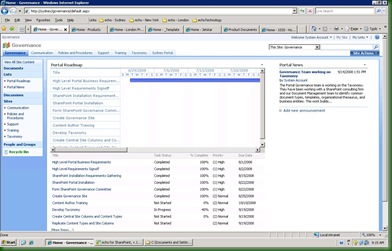
Governance Site Home Page

This road map is simply a Project Tasks List called "Portal roadmap", created on the root of the site collection. Then I added the task list as a web part in Gantt view.

Subsites

I would suggest including at least 5 subsites. These are:

1. Communication

2. Policies and Procedures

3. Support

4. Training

5. Taxonomy

These are the five main things your governance team will probably be working with. You can use any template you like, although in this case I used Team Sites. The Fantastic 40 might be useful for some of these sites - especially the Support or Training sites.

Communication

The Communication site is simply a central place to spread the word about the SharePoint portal. It could be very top-down, push communication via news items or updated content. More collaborative communication would probably involve wikis, blogs, or discussion threads. If you have an existing communication process or software you could link to it from here. Tying the SharePoint portal into your existing processes and content is an important way to make SharePoint seem less threatening, more empowering, and more inevitable :)

Not shown here is a feedback mechanism. This could be a discussion thread or embedded poll that asks users to comment on the governance site and suggest ways to improve it.

Policies and Procedures

The Policies and Procedures could be a Document Center. It is simply a central place for users to find all governance documents. You should store them here and then link to them from all the other sites, using the Link To A Document content type that is available from SharePoint out of the box. This will cut down on redundancy.

Support

The Support site should have a support matrix, showing users what levels of support are available for various sites, applications, and problems. This could range from self-help to IT support. There should be contact information for help desks and IT staff if available.

This is a good place to store videos and cheat sheets for users to help themselves. SharePoint add-ons such as the SharePoint Learning Kit could go well here. Effort place here will cut down dramatically on support costs!

Training

Training could also use the SharePoint Learning Kit, and could be a good place to identify what courses are available (internally and externally) and request training. I worked with a financial client who would not let users onto the SharePoint portal until they'd passed a small online course. Each manager had a KPI and was responsible for ensuring their staff took the course, passed it, and followed its teachings when using the portal. This helped lower support costs, the staff were very satisfied with the portal, and they used it more.

Taxonomy

The Taxonomy site is a place to document the metadata and site structure you will be using to organize the home portal. This site will be more technical but is an important resource for your administrators, developers, and content authors.

Document your content types and site columns, when and where they should be used, and explain how SharePoint uses them (advanced search, property searches, content query web parts).

If you have an organization Thesaurus, document or link to it here.

This is what it could look like:
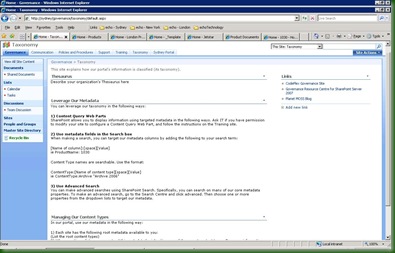
Governance Site Taxonomy 

Governance Site Functionality

There's a lot of native SharePoint functionality that you might wish to use on your governance site collection.

Auditing on the site collection: You may want to know who is looking at what.

Workflow: The Governance site is an excellent candidate for light-weight Out-of-Box or custom workflow. Workflow can help triage support and training requests, and handle publishing approval for governance policies and procedures.

Search Scopes and Best Bets: If ever there was a place to serve up highly targeted search results, the governance site is it!

Search use metrics. You have to turn this on in your Shared Service Provider(s). Pay very close attention to what people are searching for and finding (or not finding) on the governance site and use this to modify your governance approach.

Audience Targeting: Consider audience targeting content on the governance site to prevent information overload. Broadly speaking your governance site audiences might include:

1) Governance Team members

2) IT Operations, Farm Administrators and /or Site Collection Administrators

4) Site Owners (Probably business owners and power users)

5) Content Authors and Champions

6) Everyone Else

Key Performance Indicators - if you have the Enterprise license of MOSS then Key Performance Indicator functionality can be useful to give people a heads up of roughly how portal adoption is going. One thing you can do is create a custom list with some tracking metrics and then put a KPI on that list. You can update the list manually each week to show the latest usage trends.

Metrics are very important as they can indicate whether your governance effort is leading to success.

Information Management Policies - especially if you are applying records management practices to the governance content.

A Starting Point

I really hope that helps. If you do create a governance site, try to keep it up-to-date and make it the central place for people to visit. I would love to hear your comments on what you did, what works for you, what tips you have and what add-ons you found to help you manage your SharePoint portals.

Good luck in your governance efforts - it will definitely be time well spent!

P.S.: Sorry this post is a couple of weeks late, Julie :)

Sunday, December 16, 2007

"Our World" - Free Environmental Site Templates

I thought it might be fun to create an environmental initiatives site template for MOSS 2007. The goal is to help organizations track the impact their policies have on the environment, in the hope of raising awareness around ecological issues.

I've tried to stay away from the political aspects of this kind of effort. There are links to several national environmental organizations, an RSS subscription to World Wildlife Foundation, and a link to a carbon footprint calculator, but I left out anything I thought might be too regional or controversial.

I've included an Excel spreadsheet I created asking some general questions about an organization's environmental policies. It's the standard 1 to 5, Strongly Disagree to Strongly Agree questionnaire format, and no it's not very scientific!

There are also a handful of nature images in the picture library - you are free to use those inside your portal.

I started with a blank site definition and used as many MOSS web parts as I could. There are two versions of the site templates: the first is for MOSS Standard license and contains the basic site, called "Our World". Feel free to change the site template name if you find it too cheezy :)

The Enterprise License version includes a child site called the Environmental Initiatives Dashboard. It's got KPIs mapped to the questions in the Excel spreadsheet.

  • To download the Standard .stp file contained in a zip file, click here. It is 4.8 megs.
  • To download the Enterprise version, I've created a zip file  containing 2 site templates (5 megs). First install the OurWorldEnterprise.stp file into your portal. Then under it, create a subsite with a url of "dashboard" (otherwise the links won't work). Pick the OurWorldDashboardEnterprise.stp site template and you should be good to go.

SharePoint's so easy to customize that the total effort was only a couple of hours, including all content generation. This is only a starting point - I would really love to hear from you about the site templates, especially if

  1. You are using them,
  2. You are making improvements to them, and / or
  3. You have other ideas on what can be done to them

Oh, last but not least - these site templates are licensed under Creative Commons Attribution ShareAlike 3.0. This means that you can use the template for business purposes (although you can't sell it), but you can only redistribute the template or derivative works under the same license terms. So you are pretty much free to modify and share as you like!

Enjoy!

Thursday, October 25, 2007

OneNote and SharePoint: Better Together!

OneNote 2007 is great for note-taking. My colleagues and I have been using it for the last little while and we love it. There's always something new to learn about it.

After many months of using it individually, we decided to start sharing our OneNote notebooks with each other. Here's the cool bit: the notebooks can back onto a WSS 3 or MOSS library.

If you create a new document library somewhere on your SharePoint portal, you can choose a OneNote Section as the document template rather than the default Word template (although any library document template will apparently work just fine).

Now if you go back into OneNote, you can choose to share a notebook and host it in the document library you just built. It's easy to do; just click "Share" on the top menu and then "Create Shared Notebook". Give it a title and pick a template (we use "Shared Notebook - Reference Materials" or "Shared Notebook - Group Project").

Then when it asks "Who will use this notebook", just click "Multiple people will share this notebook" and choose to share it on a server.You will be asked to confirm the location: paste the URL of your site into the path textbox and then you can browse to the OneNote document library. 

Once created, you'll find a new folder in the SharePoint document library with the title of the notebook. Inside the folder there are OneNote files, one for each section (OneNote pages and subpages aren't actually individual "files").

You can invite people to the site just by giving them the library URL. Clicking on the OneNote notebook file will download a cached copy of it and open it in their OneNote client on their desktop.

We had a lot of fun adding content and pages, and watching as the clients synchronized changes first to the master files in SharePoint, and then down to each others' desktops. It's a very seamless process.

OneNote is very effective at synchronizing changes, although it doesn't use Groove apparently (Groove does file-based synchronization while OneNote seems to do more in the nature of content merging). 

You can view the standard Document Management panel in OneNote by clicking "Tools" and then "Document Management", which will allow you to view the site membership, see what's been updated, and set alerts if you want to keep on top of changes.

In order to search the OneNote content in MOSS 2007, you'll have to install OneNote 2007 on the Index server to get the OneNote 2007 iFilter, and then add the .one filetype to the Shared Service Provider's search settings. Instructions on how to do that are here.

This OneNote-SharePoin t combo is like a team Knowledge Base on steroids: fully searchable, disconnected, synchronizing, shareable, and with all the rich SharePoint functionality of any other library. Yet another example of the power of client software leveraging SharePoint's rich repository services!

Sunday, April 08, 2007

Feature IDs and Template Numbers For Lists and Libraries

Again, by way of Mick Badran, a helpful tip for when you need to find the GUID or Template number for a list (because you are developing features, or using the SharePoint object model perhaps). You can find the template number and Feature ID for any list type by clicking "Create" and looking at the browser status bar at the bottom. For your convenience I have a list of the common lists and libraries and their Feature ID and Template number:

Libraries

  • Document Library
    • FeatureId={00bfea71-e717-4e80-aa17-d0c71b360101}
    • ListTemplate=101
  • Form Library
    • FeatureId={00bfea71-1e1d-4562-b56a-f05371bb0115}
    • ListTemplate=115
  • Wiki Page Library
    • FeatureId={00bfea71-c796-4402-9f2f-0eb9a6e71b18}
    • ListTemplate=119
  • Picture Library
    • FeatureId={00bfea71-52d4-45b3-b544-b1c71b620109}
    • ListTemplate=109
  • Report Library
    • FeatureId={2510d73f-7109-4ccc-8a1c-314894deeb3a}
    • ListTemplate=433
  • Translation Management Library
    • FeatureId={29d85c25-170c-4df9-a641-12db0b9d4130}
    • ListTemplate=1300
  • Data Connection Library
    • FeatureId={00bfea71-dbd7-4f72-b8cb-da7ac0440130}
    • ListTemplate=130
  • Slide Library
    • FeatureId={0be49fe9-9bc9-409d-abf9-702753bd878d}
    • ListTemplate=2100

Communications
  • Announcements
    • FeatureId={00bfea71-d1ce-42de-9c63-a44004ce0104}
    • ListTemplate=104
  • Contacts
    • FeatureId={00bfea71-7e6d-4186-9ba8-c047ac750105}
    • ListTemplate=105
  • Discussion Board
    • FeatureId={00bfea71-6a49-43fa-b535-d15c05500108}
    • ListTemplate=108
Tracking
  • Links
    • FeatureId={00bfea71-2062-426c-90bf-714c59600103}
    • ListTemplate=103
  • Calendar
    • FeatureId={00bfea71-ec85-4903-972d-ebe475780106}
    • ListTemplate=106
  • Tasks
    • FeatureId={00bfea71-a83e-497e-9ba0-7a5c597d0107}
    • ListTemplate=107
  • Project Tasks
    • FeatureId={00bfea71-513d-4ca0-96c2-6a47775c0119}
    • ListTemplate=150
  • Issue Tracking
    • FeatureId={00bfea71-5932-4f9c-ad71-1557e5751100}
    • ListTemplate=1100
  • Survey
    • FeatureId={00bfea71-eb8a-40b1-80c7-506be7590102}
    • ListTemplate=102
Custom Lists
  • Tabs List - ?
  • Custom List
    • FeatureId={00bfea71-de22-43b2-a848-c05709900100}
    • ListTemplate=100
  • Custom List in Datasheet View
    • FeatureId={00bfea71-3a1d-41d3-a0ee-651d11570120}
    • ListTemplate=120
  • Languages and Translators
    • FeatureId={29d85c25-170c-4df9-a641-12db0b9d4130}
    • ListTemplate=1301
  • KPI List
    • FeatureId={065c78be-5231-477e-a972-14177cc5b3c7}
    • ListTemplate=432
  • Import Spreadsheet - N/A

Web Pages - N/A